UnitCue

UnitCue · the sales workspace for property

Every unit. Every answer.
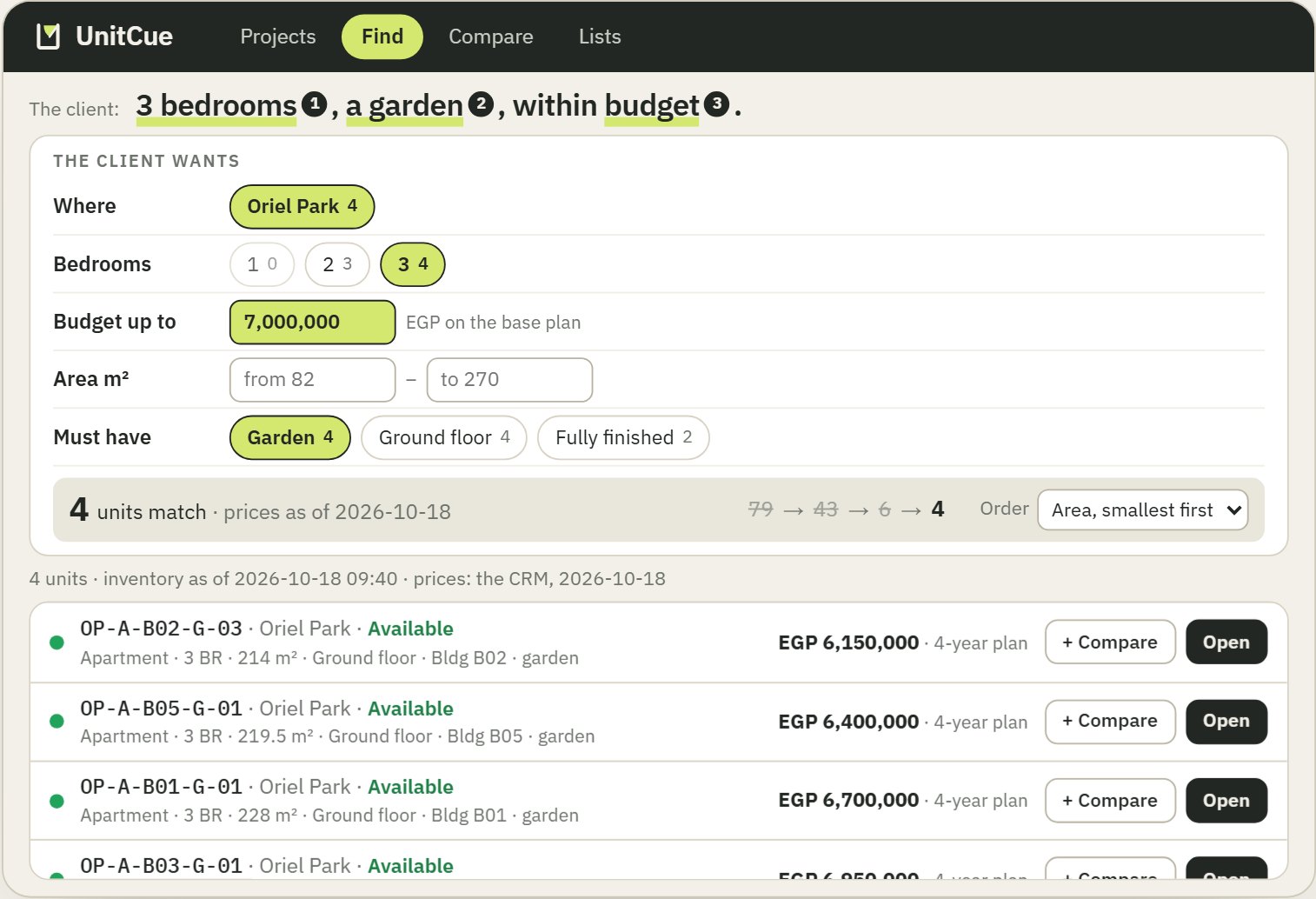
UnitCue’s Find screen on the demonstration project: the client wants 3 bedrooms, a garden and a budget of 15,000,000 on the base plan; 4 units match, each listed with its code, status, area and price.

Lumora Park is a demonstration project drawn on real architectural plans; every name, code, figure and status is fictional.

UnitCue is the workspace a property sales team answers clients from: the whole project in one place, every unit with its place, its plan and its price, and a file to hand over. Always current, on a phone, a tablet or a laptop.

  • Set up in daysfrom the drawings and the unit list you already have
  • Read from your CRMstatuses and prices, read-only; your payment plans worked out on them
  • Your office decides who sees whatstatuses, prices and printing, role by role
  • Current within a minuteon every open screen, for the whole team
On the screen, a client’s request turns into filters.

The film

Watch it in two minutes.

1:50 · the app on a demonstration project · captions available
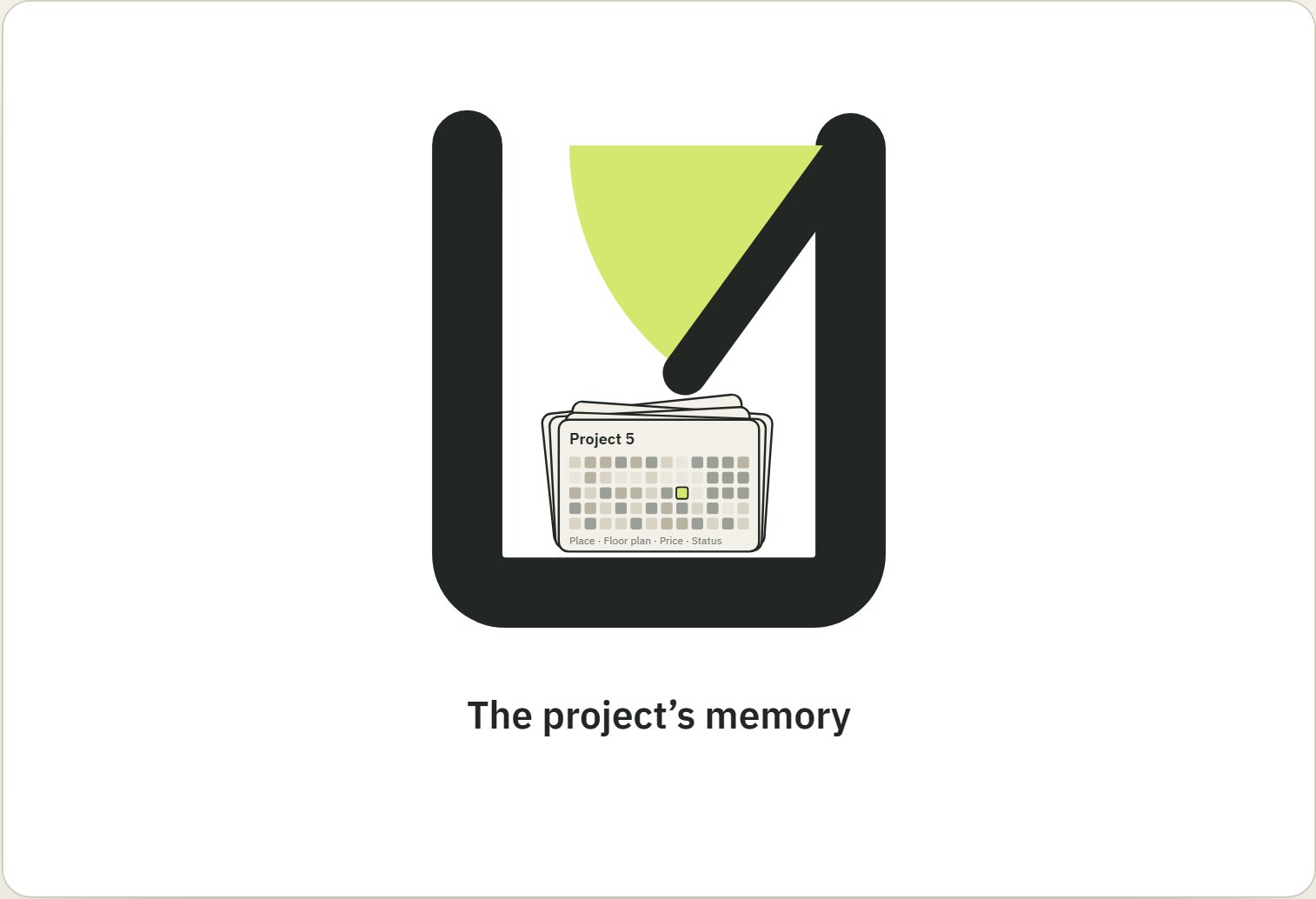
Five projects drawn as cards, each a grid of its units, settled into one stack inside the UnitCue mark, its door swing in lime: the project’s memory.

The project’s memory

No mind can hold all that. It doesn’t have to.

One project is hundreds of units, each with its place, its floor plan, its price and its status. Now make it five projects. Prices change, a phase is released, and a client calls back to ask about the unit they were shown last week.

UnitCue is the project’s memory: the client’s request, the unit on the master plan, its floor plan and its dated price, the comparison, the lists you keep (a name and a note, never a client’s phone or email), and every change, reaching the whole team.

Your attention stays on the client. UnitCue is the sales team’s partner.

Find, with its five questions: Where, Bedrooms, Budget up to, Area and Must have, each choice showing how many units it leaves.

01A client calls

Start from what the client said.

Where, how many bedrooms, the budget, the area, what they must have: five questions, always in view. Every choice carries its count, so you know what is left before you tap.

If nothing fits, Find says which filter to drop, and where else the same request finds units.

Keep units in lists, a name and a note, never a client’s phone or email. When a unit on a list is sold, comes back or changes price, the salesperson is told.

Tap a chip and watch the count. Type a budget. Open a unit, or add two to compare.
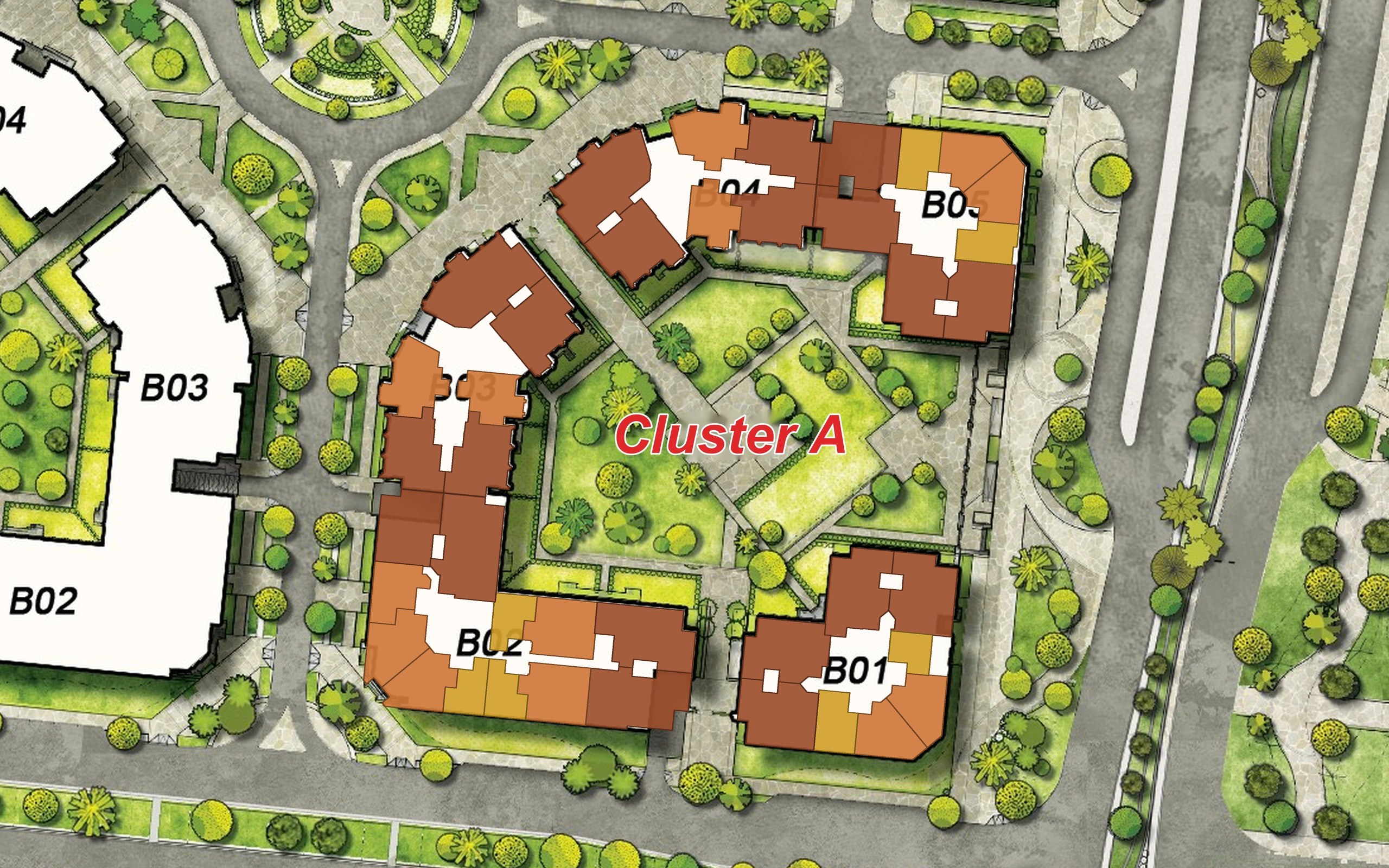
The master plan of Cluster A with every unit of the first floor drawn on it and coloured by bedrooms, from gold for one bedroom to brown for three.

02Know the project before you answer

Read the whole project in one look.

Colour the master plan by status, by bedrooms or by unit type. Tap one kind in the legend to see only it. Turn the project in 3D, and on the architect’s model show the client their own unit: its windows, its balconies, its place in the row.

Press Insights for the numbers to decide on: what is available, reserved and sold, what is left in each building and of each type, and what is running low. Open the architects’ plan of the whole floor under its units.

Before the client finishes the sentence, you know where the three-bedroom units are and which buildings have nothing left.

Press Color by → Bedrooms, then tap 3BR in the legend. Press 3D and drag the picturestep round with ‹ ›.
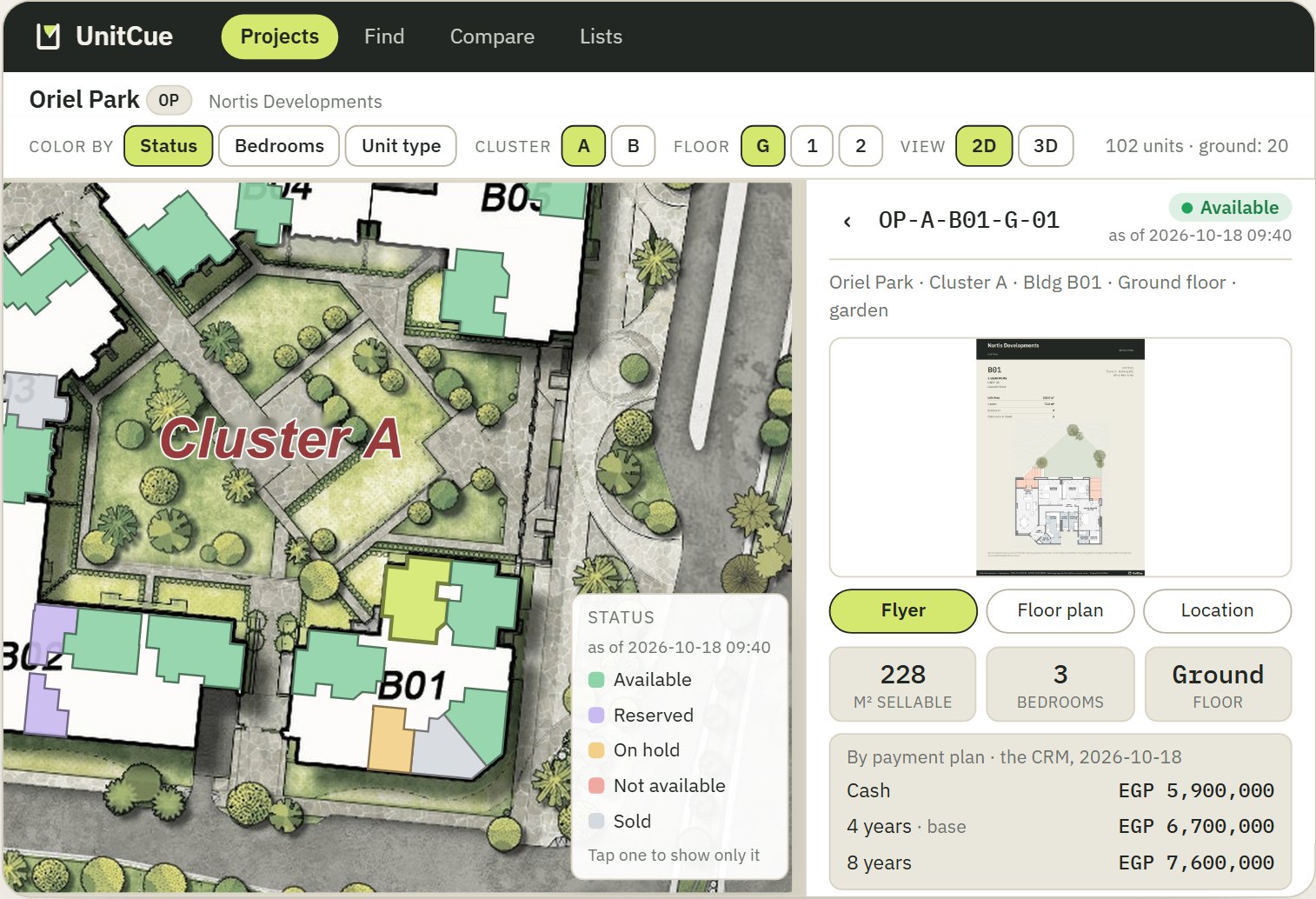
Unit LP-A-B01-G-01 open in its card beside the master plan, where it is drawn in lime: Available as of 2026-10-18 09:40, 228 m², 3 bedrooms, ground floor, and its three payment plans dated by the CRM.

03Open the unit

Where is it, what is it like, how much?

The unit drawn on the master plan, on its own floor. Its floor plan and its brochure page (the Flyer tab). Its price under every payment plan, with the down payment and every instalment, and the date the price was read. Its status, with the time it was checked.

One screen, one unit.

Switch between Flyer, Floor plan and Location; pull the card up for its pictures.
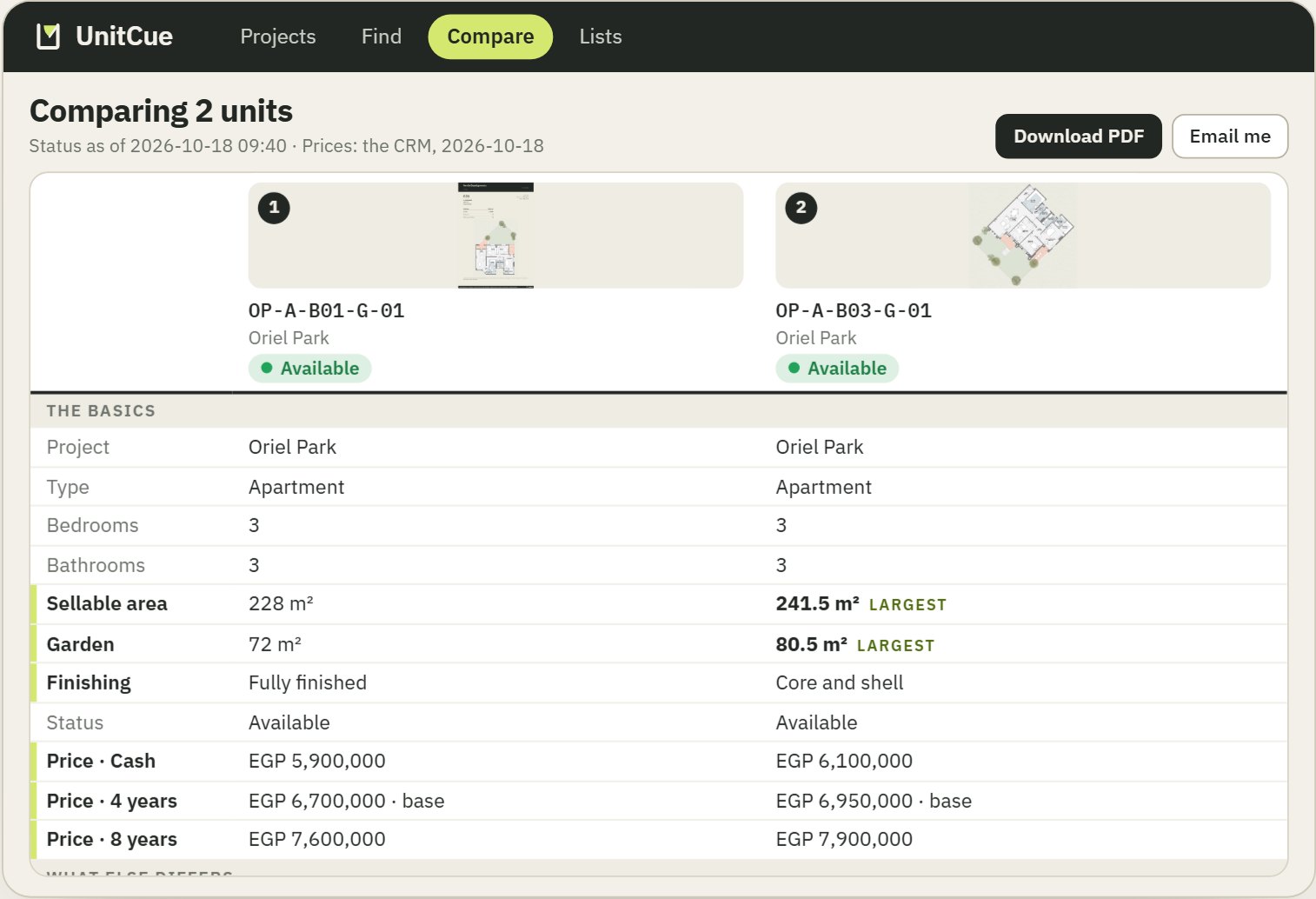
Two three-bedroom units compared side by side; the rows that differ carry a lime bar, and the larger area and garden are tagged largest.

04Say the one difference

Compare, differences first.

Up to four units, from any project, side by side. The rows that differ are marked and the larger figure is tagged.

The sentence the client needs is already on the screen: the same three bedrooms, 13.5 m² more inside and 8.5 m² more garden, core and shell rather than fully finished, for 550,000 more on the base plan.

Tap a row to bring it close.
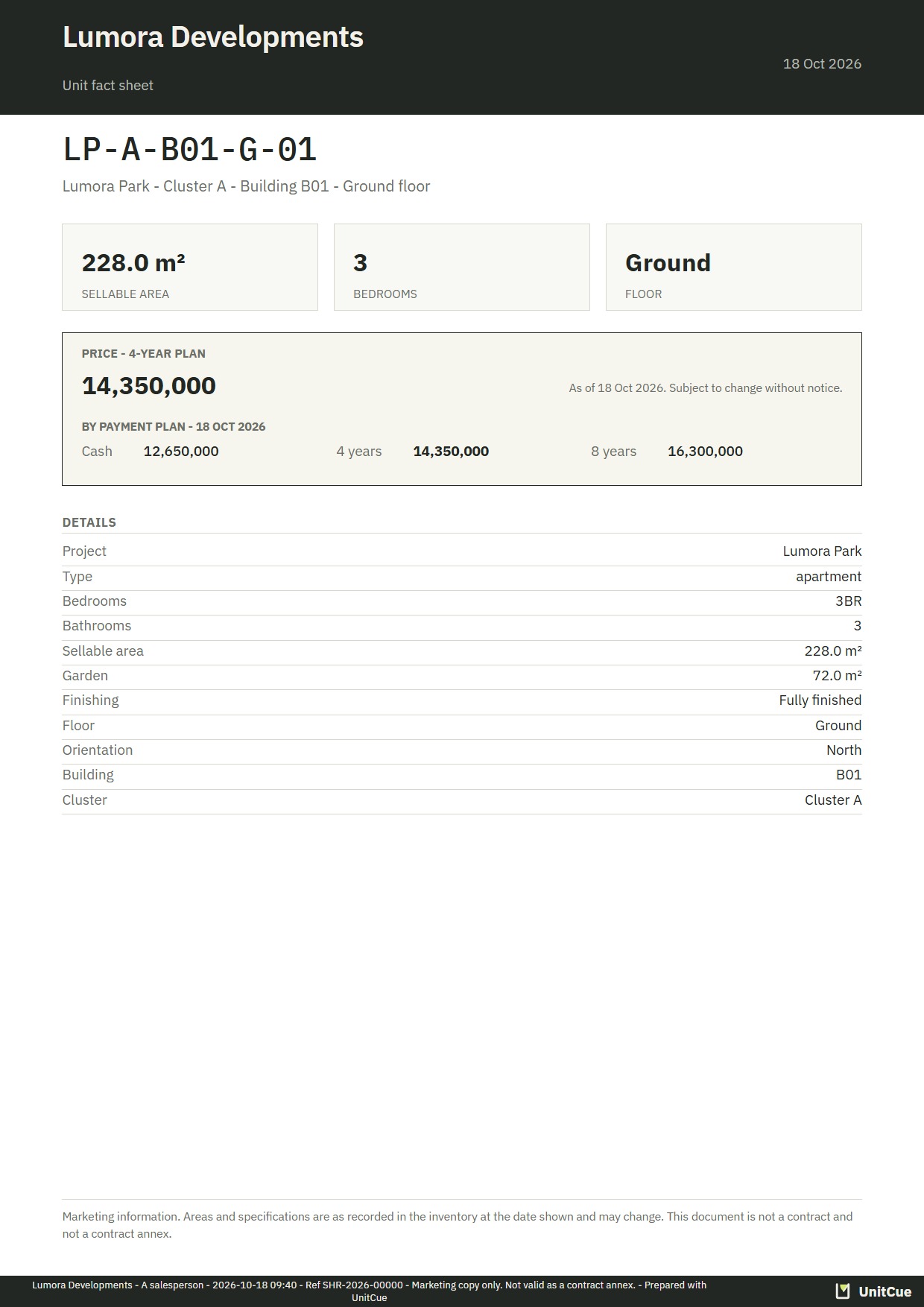
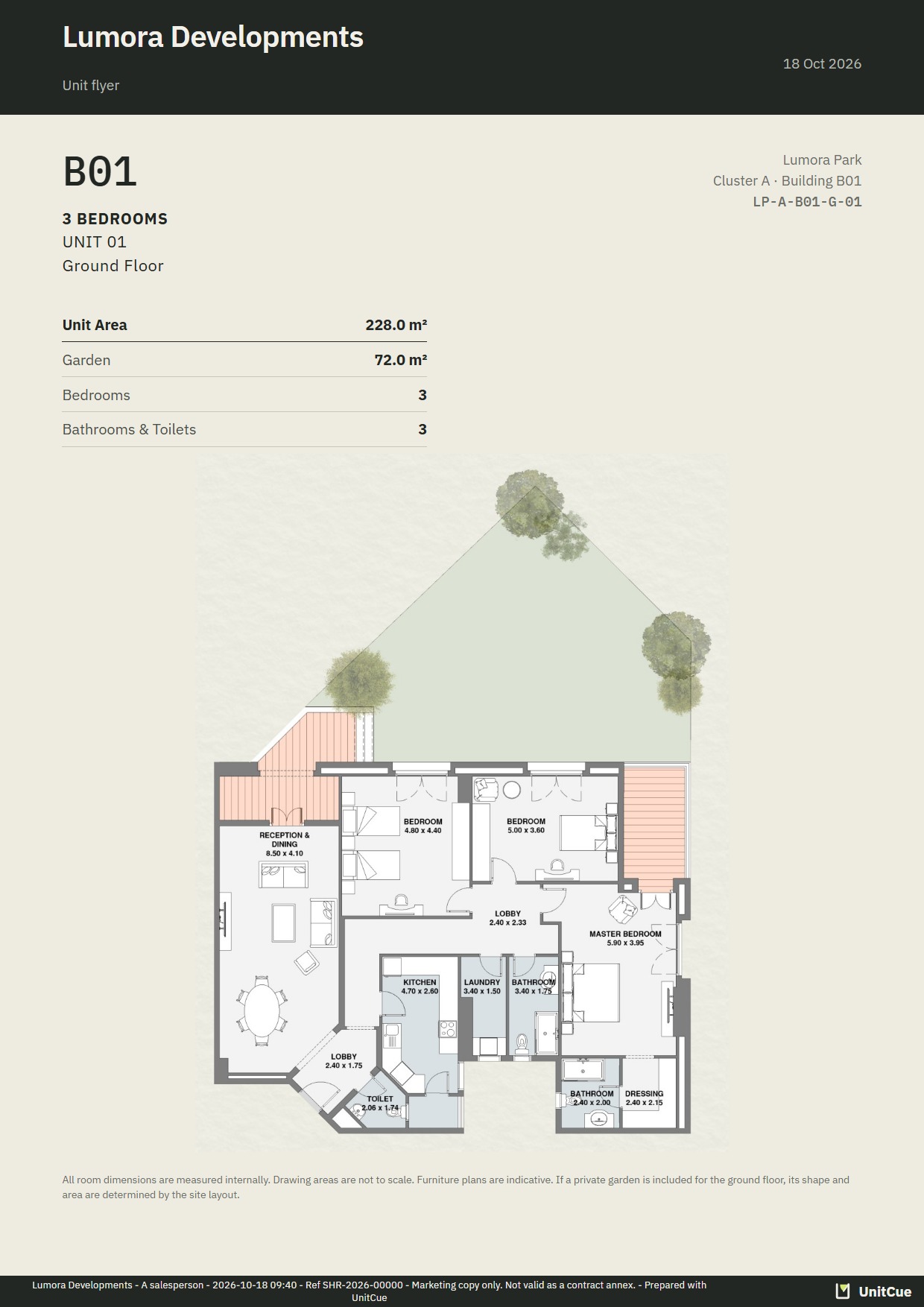
The fact sheet of LP-A-B01-G-01: Lumora Developments in the header, the unit’s plan, its areas and its payment plans with their date, who issued it and a reference. No status.The unit’s flyer page, the second page of the all-in-one file.

05Hand over a file with your name

A file, not a forward.

Download the fact sheet or the all-in-one file, or send it to yourself by email or WhatsApp and pass it on in your own conversation.

Every file carries the developer’s name, who issued it, when, and a reference. Never a status: a file lives for weeks, a status is true today.

Pick how you want it, then a file.
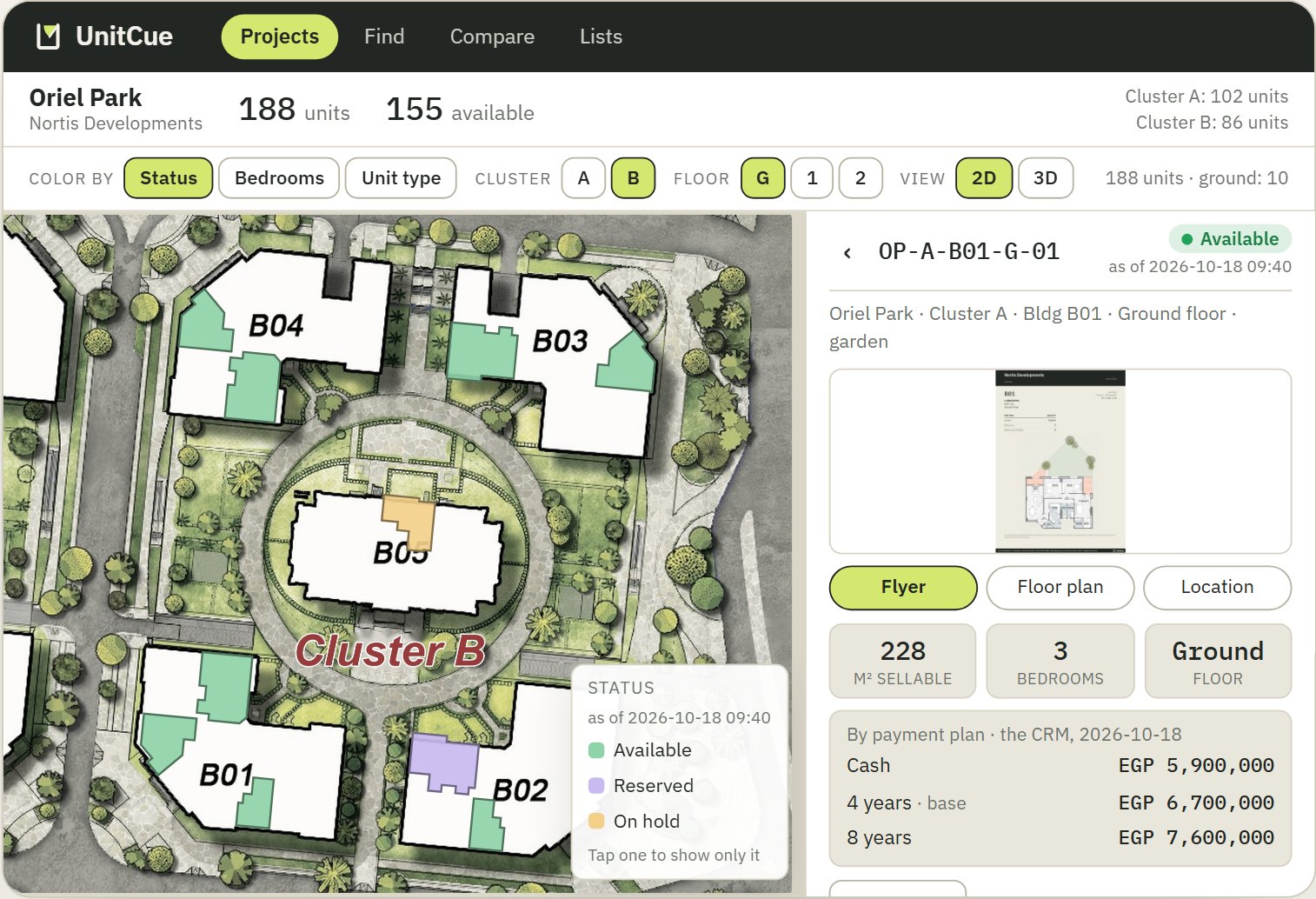
The project card over the map and the open unit: after Cluster B is released, the project counts every unit of both clusters and Cluster B’s units take their statuses on the master plan.

06Always current

When something changes, everyone has it.

A price moves, a brochure is replaced, a zone is released. Within a minute of a change landing in UnitCue, every open screen shows it, and the salesperson keeps their filters and the unit they had open.

A replaced brochure replaces itself for everyone; the old one cannot be shown again. Release a zone in the CRM and, at the next check, the whole team has it: on the master plan, with its figures.

Each one is undone by pressing it again.
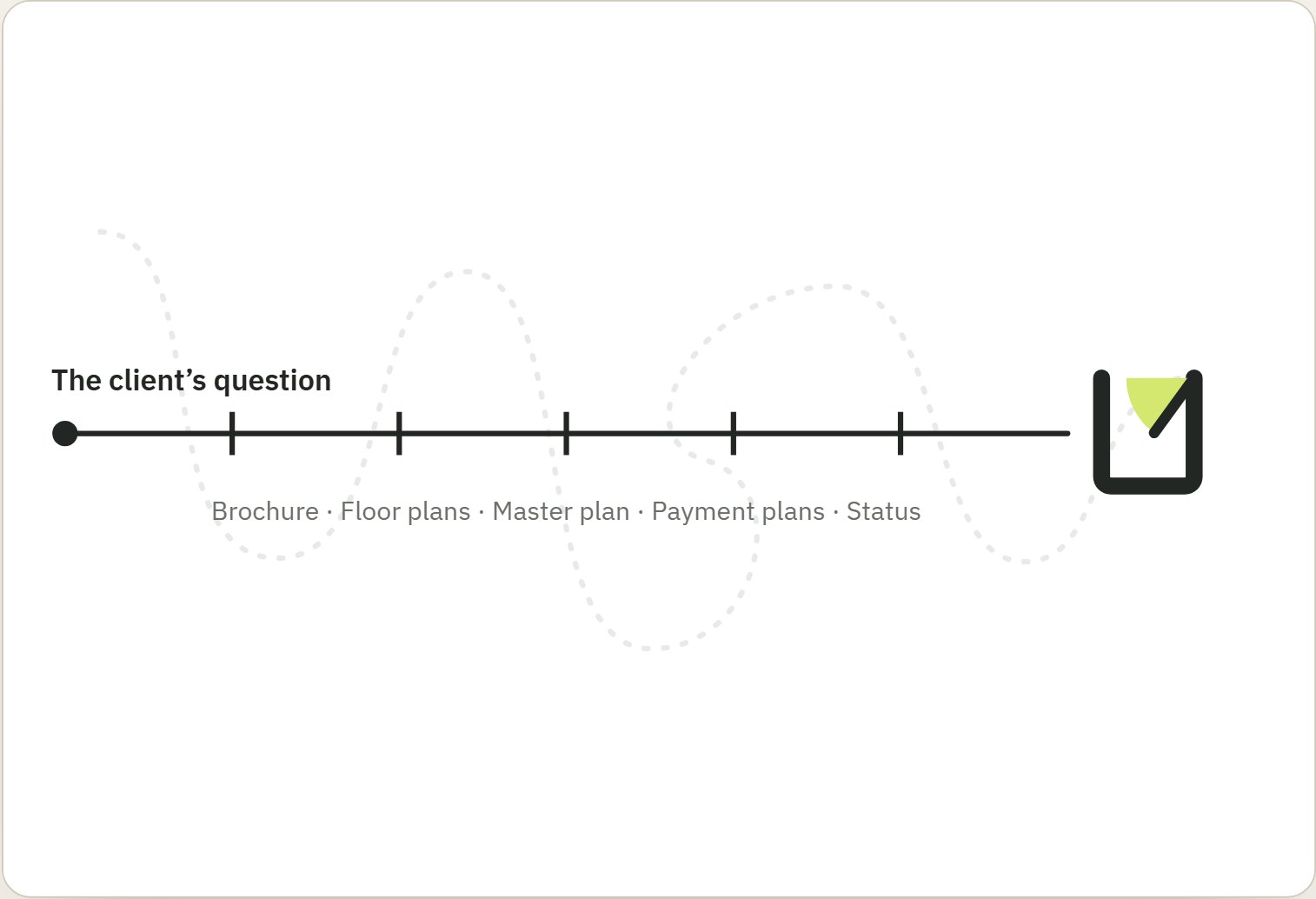
A line from the client’s question to the UnitCue mark, straight, with five ticks for the five places it no longer winds through: brochure, floor plans, master plan, payment plans and status.

07Accuracy, speed, focus

One source. One identity per unit.

Without UnitCue the answer lives in five places: the brochure, the floor-plan files, the master plan, the price list, the CRM. Every extra place you look is a place to get the unit wrong.

UnitCue hangs the plan, the place, the price and the status on one unit, so the plan you show and the price you say belong to the same unit, and your attention stays on the client.

Lumora Park is a demonstration project drawn on real architectural plans; every name, code, figure and status is fictional.

08What we do for you

From your drawings to your team’s screens.

  1. Set upSend what you have: the master plan, the floor plans, the brochure pages and the unit list. We draw the units on the plan and link every page to its unit, and you check it before your team sees it.
  2. ConnectUnitCue reads your CRM for statuses and prices, read-only, on your own account. Your payment plans are set up once in UnitCue and worked out on those prices: the down payment and every instalment. It writes nothing back and keeps no client details.
  3. OpenYour company admin opens the sales status, the prices, the printed prices and the floor plans, role by role. Until then the team sees the catalogue: every released unit, with no status and no price.
  4. Keep currentEvery open screen checks for a change each minute. A replaced brochure, a released zone or a moved price reaches everyone, and the office is told by WhatsApp and in the morning, week and month digests.

A short calla demo on one of your projectsset-up, checked by youyour team signs in

Priced per company, after we see your projects and your team’s size.

09For the sales director and the developer

What your project needs, and what the office hears.

A project needs

  • The master plan
  • The floor plans
  • The brochure pages
  • The unit list
  • Prices and statuses, read from the CRM
  • Your payment plans: the down payment and the instalments

That is all it takes to look like the screens above. The unit list is the identity; the drawings, the pages and the figures hang on it.

The office hears

  • As it happenswhat changed, by WhatsApp
  • Every morning, week and montha digest of the changes, the longer ones with a report
  • The salespersonwhen a unit on their list is sold, comes back, or changes price
Lumora Park · the week 12 Oct – 18 Oct 2026 102 units · 79 available · 2 sold this week, 1 came back, 3 prices moved The stock by building, the week’s trend, the story and the uploads. PDF.
The week’s report, as the office receives it; a sample on the demonstration project.

A zone released in the CRM reaches the whole team at the next check, on the master plan and in Find.

10Who sees what

Your office decides, role by role.

Each company has its own address and its own data, and everyone signs in with their own account. What a role sees is the company admin’s to open; until then it is closed.

SeesCompany adminDirectorSales managerSales
ProjectsEvery project, closed ones tooEvery open projectTheir ownTheir own
Sales status, once openedAlwaysEvery statusEvery status but Not releasedAvailable units only
PricesAlwaysWhen openedWhen openedWhen opened
A price on a printed sheetAlwaysWhen openedWhen openedWhen opened
Floor plans on the mapAlwaysWhen openedWhen openedWhen opened
People and listsEveryone’sThe sales line’s people, everyone’s listsTheir own team’sTheir own lists
Uploads and the CRM linkYes—not theirs—not theirs—not theirs

Development, a fifth role, prepares the drawings and the pages for every project, closed ones too, and never touches people or the CRM connection. With the status closed, every other role sees the catalogue: every released unit, with no status word, date or colour, and the maps coloured by bedrooms.

11Plain facts

What it is, in numbers that are true.

  • 5questions in Find, always in view
  • 4units side by side, at most, from any project
  • 2D · 3Dthe master plan, coloured three ways, and the architect’s model
  • 1 minbetween an open screen’s checks for a change
  • 1identity per unit: plan, place, price and status
  • 0promises about your sales

12Request a demo

See it on your projects.

Leave your details and we will call you back, or write to us. We show you UnitCue working, then look at what your projects would need.

Questions

Who is UnitCue for?

Sales teams at property developers, and the directors and managers who run them. One project or many: the more units and projects your team carries, the more it helps.

What changes for a salesperson on a call?

They start from what the client asks and see what fits, open the unit on the master plan with its floor plan, its dated price and its payment plans, compare up to four, and send a file. No digging through brochures, plans and sheets.

What do you need from us to set up a project?

What you already have: the master plan, the brochures and floor plans, your unit list, and read access to the CRM that holds your statuses and prices. You don’t redraw anything; we prepare the project with you, and you check it before your team uses it.

Is our data private? Who sees what?

Each company has its own address and its own data. Everyone signs in with their own account. The office decides who sees prices and which projects; units not released stay hidden from the sales team.

Does it change anything in our CRM?

No. It reads statuses and prices, read-only, and writes nothing back. It doesn’t book units or keep client details.

What if prices change, or a salesperson sends the wrong file?

Changes reach every open screen once they land; a replaced brochure replaces itself for everyone. Every file carries the unit’s code, who sent it, when, and a reference, and never a status that can go stale.

How do we start, and what does it cost?

A short call, then a demo on one of your own projects; the steps are under What we do for you. We price per company after seeing your projects and your team’s size.